Open a tool
The job tools are small forms, checklists and calculators for the work itself. They use no AI. They are free on every plan.
Go to the job tools
Open the job tools. In the app, your start page has a card called Job tools with the button Open job tools.
Pick a tool
The tools made for your job path come first. The rest are under More tools.
Type
There is no save button. The result updates as you type, and your entries are kept as you go.
You do not need an account to open a tool. Where your entries are kept explains what an account adds.
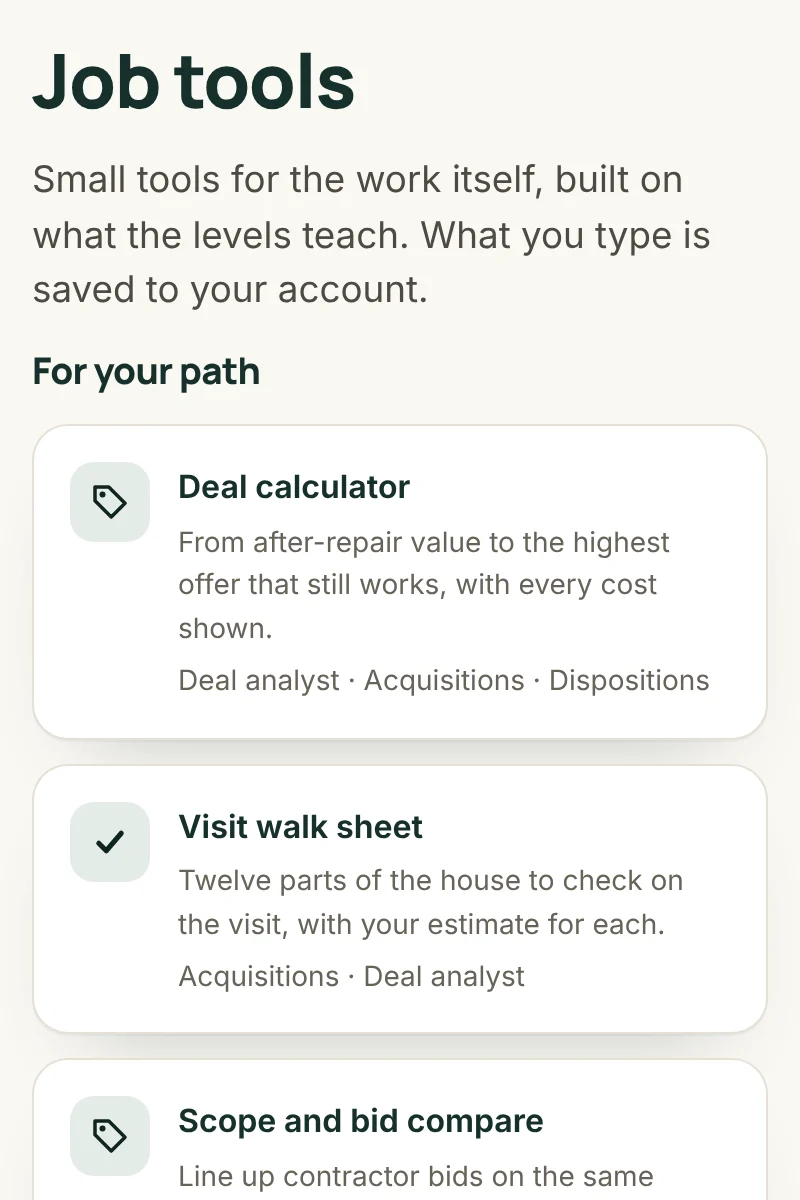
The tools at a glance
| Tool | What it does | Made for |
|---|---|---|
| Deal calculator | From after-repair value to the highest offer that still works, with every cost shown. | Deal analyst, acquisitions rep and dispo rep |
| Visit walk sheet | Twelve parts of the house to check on the visit, with your estimate for each. | Acquisitions rep and deal analyst |
| Contract-to-close checklist | Every step from signed contract to funded, per file, with days to closing. | Transaction coordinator and acquisitions rep |
| Scope and bid compare | Line up contractor bids on the same scope and see gaps and missing lines. | Project manager and deal analyst |
| Buyer cards | What each buyer buys and where, then match a deal to the right few. | Dispo rep |
| Follow-up planner | Every lead with a date and a reason to call, late ones first. | Follow-up specialist, lead manager and cold caller |
| Opener and voicemail cards | Three openers and two voicemails with your name, team and the house filled in. | Cold caller, lead manager and follow-up specialist |
| Call notes summary | Six things every handoff needs, turned into a note to paste into your CRM. | Lead manager, follow-up specialist, cold caller and acquisitions rep |
| One-on-one plan | One skill a week per rep: what good sounds like, the practice and a check date. | Team lead |
| Objection library | The best answer to what sellers say, searchable, with your own lines added. | Lead manager, cold caller and follow-up specialist |
| Offer talk prep | Your deal numbers turned into plain words that show the seller how the offer was made. | Acquisitions rep |
| Deal sheet writer and checker | House facts in, an honest deal sheet out, with missing facts flagged first. | Dispo rep and deal analyst |
| Call outcome tally | Dials, talks, handoffs, callbacks and stop requests, for today and the week. | Cold caller |
| New hire ramp plan | A 30-day plan from a start date: which levels each week and when to check. | Team lead |
| Payment schedule by stage | Stages, what counts as done, and what is paid after each check. | Project manager |
Every tool is open to everyone, whatever their path. The job tools page lists what each one asks for and what it gives back, and each tool has a page of its own there with a worked example.
An example: work out an offer
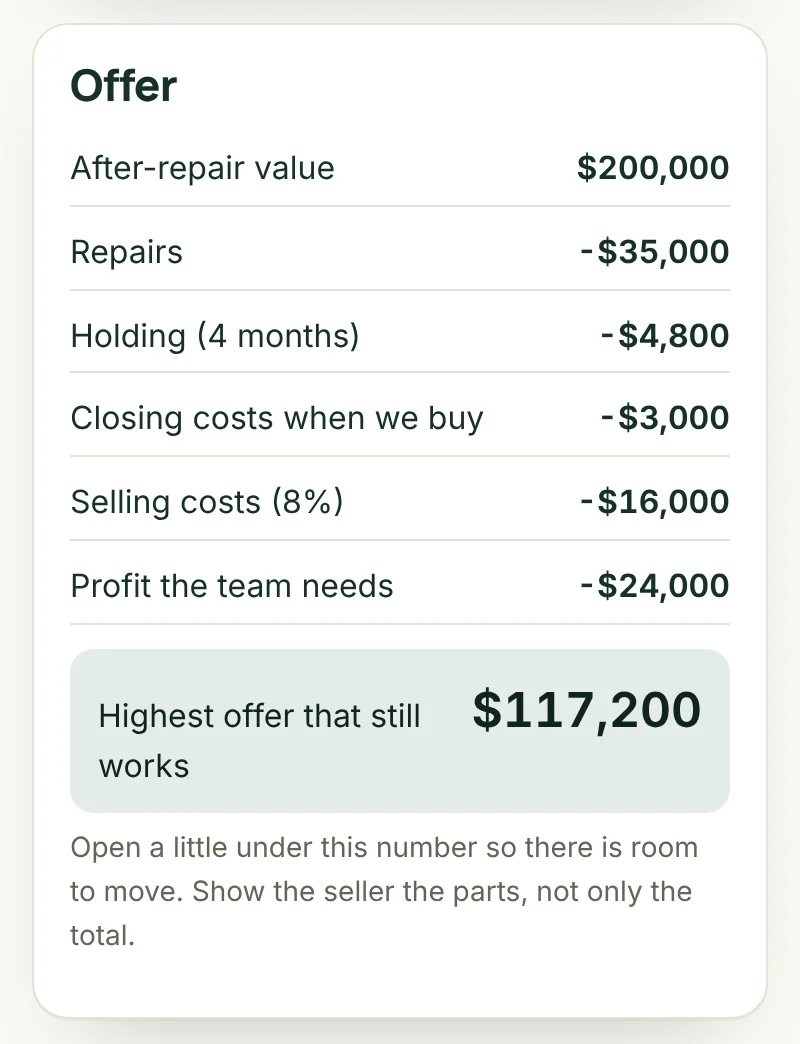
Every tool works the same way: you type, and the result updates. This example uses the deal calculator, which is made for deal analysts, acquisitions reps and dispo reps.
Open the deal calculator
Open Deal calculator. Under The numbers, type the after-repair value, the repairs, how many months you will hold the house and what each month costs, the closing costs when you buy, the selling costs and the profit your team needs.
Read the offer
The Offer card puts each cost on its own line and ends with Highest offer that still works.
Check the warnings
A cost you leave blank counts as zero, so the offer shows higher than it should. The calculator lists what is not filled in yet, and it tells you when the numbers do not work at that value.
Turn it into words
Open Offer talk prep. It walks the seller through the same numbers one part at a time, rounded to the nearest $500. Say it in your own words, or press Print to take it with you.
Use your own team's numbers for costs and profit, because every team's are different.
Copy, print and download
| What you want | Where to find it |
|---|---|
| A note to paste into your CRM | Call notes summary: Copy for the CRM |
| A deal sheet for your buyers | Deal sheet writer and checker: Copy the deal sheet |
| A status update for the seller, the buyer or the title company | Contract-to-close checklist: Copy the update |
| A check-in text for a lead | Follow-up planner: Copy the text |
| An opener or a voicemail | Opener and voicemail cards: Copy under each card |
| Your buyers in a spreadsheet | Buyer cards: Download as a spreadsheet (CSV) |
| A page on paper | Print, on the visit walk sheet, one-on-one plan, offer talk prep, new hire ramp plan and payment schedule by stage |
- To empty a tool for the next house or the next call, use its own button, such as Start a new house on the walk sheet or Clear for the next call on the call notes.
- A button that removes something asks for a second tap. It changes to Tap again to remove for a few seconds.
- A list of files, buyers, leads or plans holds up to 40 entries.
- The opener and voicemail cards use your first name and your team's name. Set your name on your account page first.
Where your entries are kept
- Signed in. Your entries are saved to your account with your progress, so they are there when you open the app on another device.
- Not signed in. Your entries stay in the browser you typed them in.
Have an account already? Sign in before you start typing. Entries typed while signed out can be replaced by your saved progress when you sign in.
Your team lead and the business owner see your practice results. They do not see what you type in a tool or the lines in your playbook.
The tools ask for first names or nicknames and short notes on purpose. Full records, phone numbers and documents belong in your CRM, and the notes a tool writes are made to be pasted there.
My playbook: keep the lines that worked
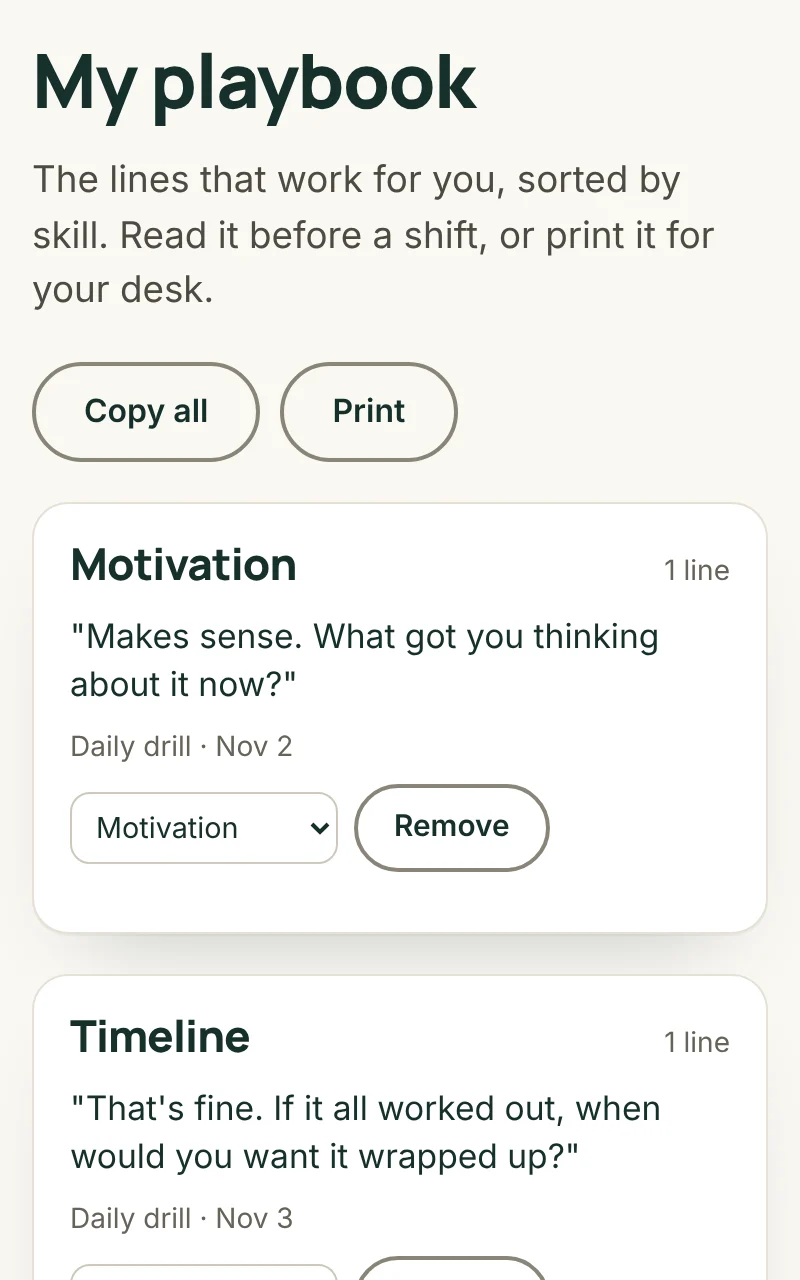
My playbook keeps the lines that worked for you, sorted by skill. Open your playbook, or use the My playbook card on your start page.
| Where the line comes from | How to save it |
|---|---|
| A guided practice round | On the result, press Save it to my playbook or Save them to my playbook. It keeps the good lines you picked in that round. |
| A free talk call with an AI seller | The scorecard shows Your best line. Press Save to my playbook under it. |
| The daily drill | After you answer, press Save the best line. If you typed your own answer, Save my version keeps that too. |
| Your own words | On the playbook page, under Add a line in your own words, pick the skill, type the line and press Save line. |
- The playbook holds up to 60 lines of up to 280 characters each. When it is full, remove a line you no longer use.
- Each line shows where it came from and the day you saved it. The menu next to a line moves it to another skill.
- Copy all copies every line, grouped by skill. Print gives you a page for your desk.
- Remove asks for a second tap before it deletes a line.
- The Objection library tool searches your playbook lines next to the best answers from the daily drill.
Your playbook belongs to your account. Your team lead and the business owner do not see it.
The keep-sharp round
Skills fade when they are not used. Once you have finished every level of a path, your start page shows a Keep sharp card for that path every month.
Open your start page
The card names this month's round: one boss round from the path you finished, set to hard.
Take the round
Press Start the round.
Done for the month
When the round ends, the card says it is done and when the next one opens. That is the 1st of the next month.
- The level changes each month. It starts with the last level and works back through the path, so the whole path stays fresh.
- You get one round a month for each path you finished.
Practice that fits you
Your start page has a card called Fit the practice to you. It asks two things: How long have you done this kind of job? and What does your team mostly do with the houses? Your answers set how tough the people you practice with are, and you can change them at any time.
- Your level also moves with your results. Strong rounds make them tougher, and rough ones ease them back.
- Under a result, the app asks How did that feel? You can tap Too easy, About right or Too hard. It is optional, and it changes your own practice only.
- When you finish a path, a card called Where to go next suggests another path, with the reason. Your XP and badges carry over.
Does a step here not match what you see in the app? Tell us and we will fix the guide. You can also ask in the help chat at the bottom of the page.